
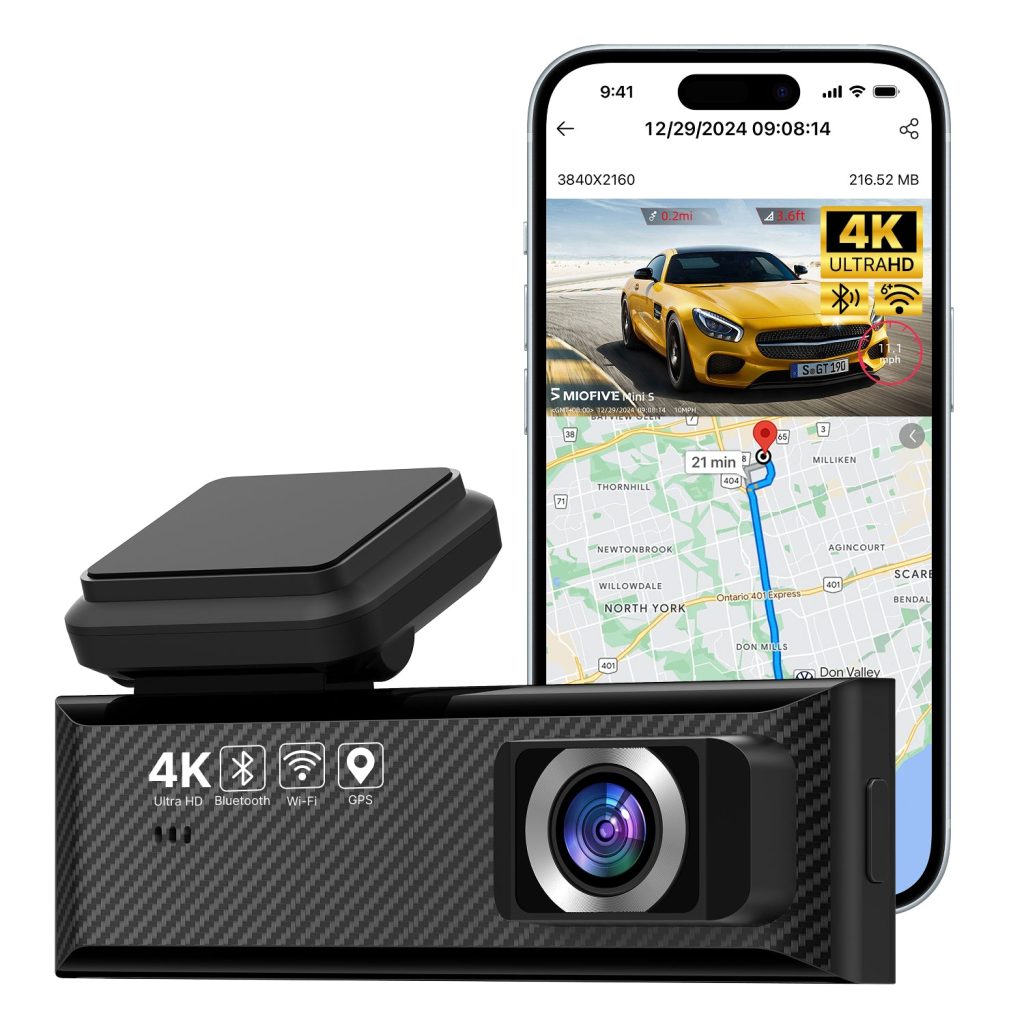
MIOFIVE Dash Cam Mini S 4K UHD Front Car Camera(No SD Card)(UK)
Overview
The MIOFIVE Dash Cam Mini S captures stunning 4K Ultra HD (3840×2160 @25fps) footage, ensuring every detail on the road is crystal clear. Designed with a compact form factor, this front-facing car camera integrates Smart Wi-Fi & App control, built-in GPS tracking, and Super Night Vision for reliable recording day or night. Please note: SD card is NOT included – a U3 Class 10 microSD (32GB–512GB) is required. Comes with features like loop recording, a built-in G-sensor, 24H parking mode (requires separate hardwire kit), and OTA updates to keep the firmware current.
Key Features
- 4K UHD (3840×2160) @25fps – ultra-sharp front-facing video
- Super Night Vision – improved low-light performance
- Smart Wi-Fi & App – view, download, and manage footage on your phone
- Built-in GPS – logs your route and speed data
- 24H Parking Mode – motion/impact detection when parked (hardwire kit sold separately)
- Loop Recording & G-Sensor – automatically overwrites old footage and locks events on impact
- OTA Updates – keep your dash cam up to date wirelessly
Who It Is For
- Drivers who want true 4K front-facing recording on a budget
- UK motorists looking for a compact, discreet dash cam
- Users who prefer app-based management and wireless file transfer
- Anyone needing GPS logging for route verification or insurance
- Owners who plan to use parking monitoring (with optional hardwire kit)
FAQs
How does the dash cam start working?
On first use, power on the dash cam and follow the manual to connect the app and activate the device. After initial setup, it automatically starts recording whenever powered on.
Do I need to buy an SD card separately?
Yes, no SD card is included. This dash cam supports 32GB–512GB U3 Class 10 microSD cards. We recommend using a Miofive branded card for best performance.
How do I enable parking monitoring?
Parking mode requires a separate hardwire kit (ASIN: B0CRHM5V1C). The hardwire kit is not included with the Mini S.
Why does video look unclear on the app?
Videos previewed in the app are compressed for smoother streaming. For full clarity, download the video to your phone’s gallery or computer.
How do I format the memory card?
Open the Miofive app, go to My Device → Quick Settings → More → Format Memory Card. Formatting erases all data, so back up important files first.