
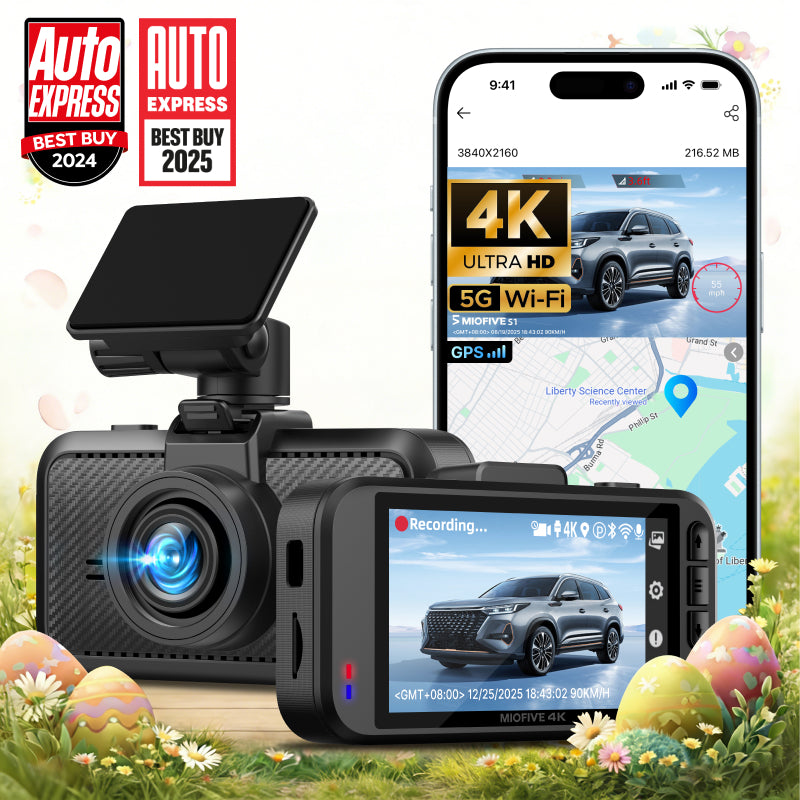
MIOFIVE Dash Cam S1 4K UHD Front Dash Camera(32GB Card Not Included)(UK)
Overview
The MIOFIVE Dash Cam S1 delivers sharp 4K UHD front-facing recording at 30fps, ensuring every detail of the road is captured clearly. Equipped with a 3" IPS display, dual-band Wi-Fi (2.4G & 5G), and Bluetooth 4.2, this compact dash cam offers seamless connectivity and easy playback. It features loop recording, a G-sensor for incident detection, and supports 24-hour parking monitoring (requires optional hardwire kit). Please note: a 32GB microSD card is not included with this model.
Key Features
- 4K (3840×2160) @30fps front recording for ultra-high-definition video
- 3-inch IPS screen for clear live view and playback
- Loop recording automatically overwrites old footage without gaps
- Built-in G-sensor detects collisions and locks critical clips
- 24-hour parking monitor (requires optional USB-C hardwire kit)
- Dual-band Wi-Fi (2.4G & 5G) and Bluetooth 4.2 for fast app connectivity
- Supports microSD cards from 32GB up to 512GB (card not included)
Who It Is For
- Drivers wanting crystal-clear 4K footage for peace of mind
- UK motorists looking for a reliable single-channel front dash cam
- Users who prefer a compact, screen-equipped dash cam with smart features
- Anyone needing incident detection and parking surveillance (with optional accessory)
- Budget-conscious buyers who already own a compatible microSD card
FAQs
Does the dashcam have a built-in battery?
No, the MIOFIVE S1 operates with a car charger and does not contain a battery.
Is a memory card included with this dash cam?
No, the 32GB card is not included. The dash cam supports U3 microSD cards from 32GB to 512GB. If you need a card, we recommend a Miofive U3 Class 10 card.
How do I enable 24-hour parking monitoring?
You will need the optional USB-C hardwire kit (sold separately — ASIN: B0CRHM5V1C) to activate parking monitoring.
Why isn't my dashcam recording?
First, make sure the microSD card is compatible and properly inserted. Regularly delete locked files to prevent the card from becoming full.
The video quality looks poor – what should I do?
Ensure the lens is clean and unobstructed. For best clarity, download the video to your device before viewing.